FAQs
Answers to your frequently asked questions. Can't find what you're looking for? Let us know with the Contact Us form.
What is a Beckn plan?

A Beckn plan is a human-crafted collection of calendar events packed with tips, tasks or lessons designed to help you achieve a specific goal or objective. Each event in a Beckn plan has actionable content to help you recall important points, put a concept into practice, or just take a few minutes to reflect as you progress on your journey. Plans are often designed to reinforce the main concepts of popular books or the ideas of popular influencers and help you implement the key ideas in your life. One of the foundational concepts of Beckn is that we use the essential tool you already use to manage your life (your digital calendar) instead of trying to get you to use a new or different app to achieve your goals.
How to add a plan to Google Calendar
Make your plan selections
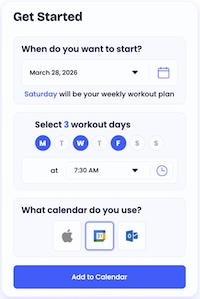
From any plan page, choose your start date, recurring days of the week (if prompted), start time, and then click the Google icon to sync your customized plan to your Google Calendar. Here's an example:
What happens next:
- Beckn launches Google Calendar in your browser and you’ll see this pop-up. Click the “Add” button:

- Next, you’ll see this message at the bottom of the Google Calendar page, confirming that Beckn is adding the events to your calendar. This will disappear after several seconds:

- Along the left side of the page in Google Calendar, you'll see the “Other calendars” section and a new Beckn webcal link. It will show the URL for a few minutes and look like this:

- but will soon be replaced by the Beckn plan name when the calendar page refreshes:

That's it!
How to add a plan to Apple Calendar
Make your plan selections
From any plan page, choose your start date, recurring days of the week (if prompted), start time, and then click the Apple icon to sync your customized plan to your Apple Calendar. Here's an example:

What happens next
- Beckn launches Apple Calendar and you’ll see this pop-up:

- Next, you’ll be asked to “Subscribe” to this Beckn calendar (plan). Sometimes Apple Calendar will say “Find” instead of “Subscribe” but either will work. Click “Subscribe” or “Find”:

- Apple will retrieve more details from the Beckn plan and ask you to confirm that you want to add the Beckn calendar plan. Click “Add” in the upper right corner:

- Lastly, Apple Calendar will display a list of your Calendars, including the new Beckn calendar plan. Click “Done” to return to your calendar view:

That's it!
What if the plan didn't add to my calendar?
Sometimes a plan you add in Beckn does not show up on your calendar. This could be due to a pop-up blocker in your browser that interferes with the Beckn automated program, or a number of other potential factors. Don't worry - it only takes a few simple steps to get you back on track.
First, sign in to Beckn, then go to "My Account" and select "My Plans" on the left side to see the plans you've added. To manually add a plan to your calendar, click the "Copy webcal link" item from the edit menu for the plan (it's the 3 dots ••• in the upper right for each plan).
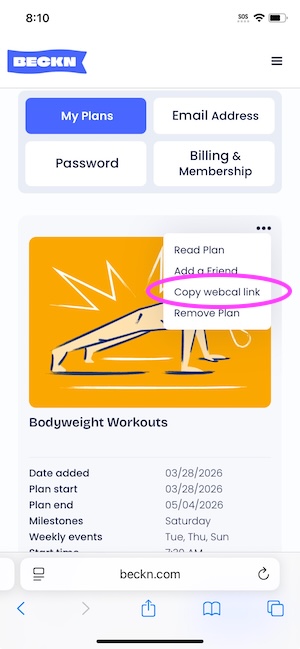
This will copy the Beckn plan link to your clipboard. The next steps depend on which calendar application you use, but you want to find the command to "subscribe to a calendar" or "add calendar subscription" or similar menu item. When asked for the URL for the calendar, simply paste the webcal link you copied from Beckn into the field.
For Apple Calendar:
- From the Apple Calendar File menu, select "New Calendar Subscription"
- Paste the webcal link you copied from Beckn into the Calendar URL field and click the Subscribe button

- Confirm the details of the Beckn plan and click "OK"

- You may want to change the Auto-refresh to "Every Day" to make sure any updates to your plan are sync'd more quickly.
For Google Calendar:
- In Google Calendar, click the + button next to "Other Calendars" on the lower left side of the page, and select "From URL"

- Paste the webcal that you copied from Beckn into the field, and click "Add calendar"

That's it!
How do I see the content of a plan?
There are 2 ways to view the content in a Beckn plan.
1️⃣ All of the content in a Beckn plan is contained in the individual events that are added to your calendar. To view the content and follow the plan instructions, simply go to your digital calendar (Apple Calendar, Google Calendar or Microsoft Outlook) and click on the event you wish to view. Once the event is opened up you'll be able to read and follow the steps recommended for that day.
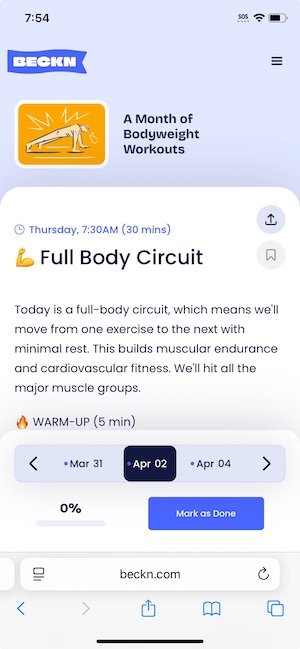
2️⃣ For an even better viewing experience, open one of the Beckn events in your calendar and click on the link in the location field (the link starts with "https://www.beckn.com/browser...") and this will open the Beckn plan browser. You can also launch the Beckn Browser by going to My Account, and clicking the "Read plan" button for any plan you've added. The Beckn Browser lets you scroll through each event in your customized plan for an easier, full-screen view of the content. You can click on the event date to jump to a specific entry in the plan, or use the left and right arrows to scroll through one event at a time. You can also mark any event as "done" to track your progress through to completion.
Can I change the start date of my plan?
Once you add a plan to your calendar, you can't change the start date. Beckn plans are customized calendar subscriptions created dynamically when you initially add the plan and select your start date, recurring days and times. Once established, the Apple/ Google/ Microsoft calendar subscription features that allow us to synchronize with your digital calendar do not allow changing the start date or cadence of individual events within a plan. If you find that you prefer a different start date for the plan and don't mind starting again, simply remove the plan from your calendar and re-add it with your new start date, days & times. You can even set the re-added start date in the past, as a quick way to resume the schedule mid-plan on a different cadence.
Can I move one event in a plan to a different day or time?
Unfortunately not. Beckn plans are customized calendar subscriptions created dynamically when you initially add the plan and select your start date, recurring days and times. Once established, the Apple/ Google/ Microsoft calendar subscription features that allow us to synchronize with your digital calendar do not allow editing or moving of individual events within a plan. While not ideal, we recommend using the existing event content of your Beckn plans as a reference even if you carry out your Beckn event on a different day or time than the planned cadence.
If you find that you prefer a different recurring day or time and don't mind starting again, simply remove the plan from your calendar and re-add it with your new days & times. You can even set the re-added start date in the past, as a quick way to resume the schedule mid-plan on a different cadence.
How do I remove a plan from my calendar?
To remove a plan from your calendar, first go to My Account on beckn.com and select "My Plans" from the options on the left. Any plans you have added are shown on the page. To remove a plan select the"Remove Plan" plan item from the edit menu for the plan you want to remove. The edit menu is in the upper right corner of each plan card (it looks like 3 dots: •••). The Beckn plan events will now be removed from your calendar the next time your calendar program synchronizes with Beckn. This could be as short as 5 minutes or as long as a week, depending on the calendar program and the default refresh frequency. If you wish to remove the events sooner, you can go to your calendar program and refresh, or update the Beckn calendar manually, or Unsubscribe the Beckn calendar plan from your personal calendar program.
I removed the plan from My Account on Beckn, but it still shows on my calendar. How do I remove it?
When you remove a plan from "My Account" on Beckn, the individual events will be removed from your calendar the next time it syncronizes with Beckn.com. Depending on your calendar settings, this could take anywhere from 5 minutes or up to one week (depending on the calendar program and default refresh frequency you have specified). Even after the individual events are deleted from your calendar, the Beckn plan will still show as one of the calendar subscriptions listed on your digital calendar. To remove it from your calendar view, select "Unsubscribe" in your calendar program to remove it from the list.
Will there be more Beckn plans?
Yes. The Beckn team is hard at work creating more plans that support the goals & aspirations of our users. If you have a specific plan you'd like to see, please use the Contact Us form and tell us what you'd like to see. If you'd like to be notified when we add new plans please let us know. You can also sign up for the Beckn newsletter to stay informed of the latest news and plans being added to Beckn.com. Keep checking back with us in the meantime as new plans are added weekly.